
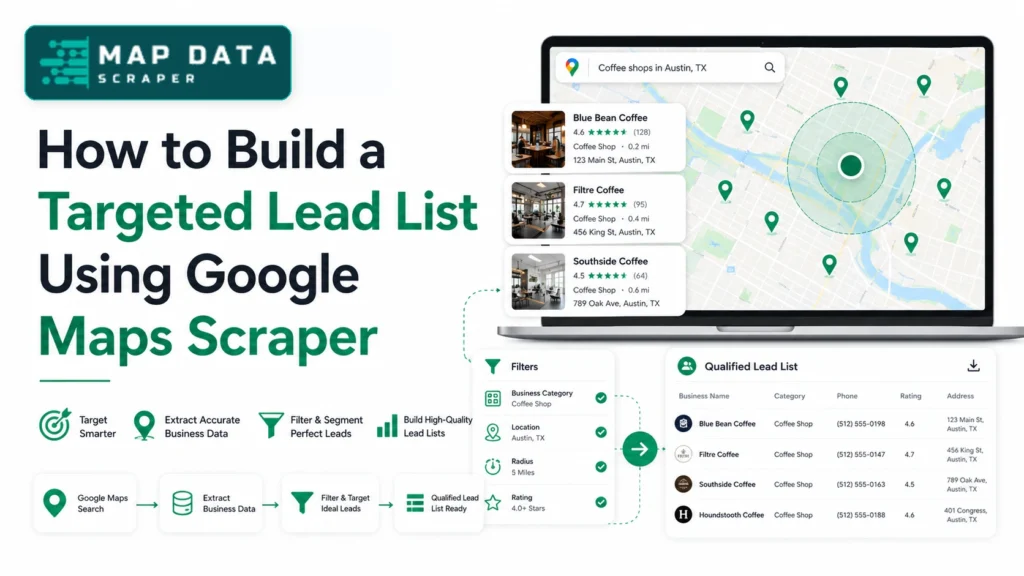
A targeted lead list is not the biggest list you can scrape. It is the smallest useful list that matches your offer, target location, contact path, and outreach angle. A Google Maps Scraper can pull business names, websites, phone numbers, ratings, reviews, addresses, categories, and location data, but the export is only the starting point.
Most weak lead lists fail before outreach starts. They include businesses outside the target area, wrong-category listings, closed businesses, duplicate locations, chains that do not match the offer, and records with no usable contact path. The spreadsheet may look full, but the sales team still has to clean it before it can be used.
The better workflow is simple: define who belongs on the list, scrape only the fields that prove fit, enrich contact paths, remove bad records, segment the list by outreach angle, and only then upload it to a CRM or outreach tool.
What Makes a Lead List Targeted
A targeted lead list is built around fit, not volume. The list should answer four questions before outreach starts: does this business match the offer, is it in the right location, can it be contacted, and is there a clear reason to reach out?
The mistake is treating every Google Maps result as equal. A dentist with 400 reviews, a working website, and multiple locations is not the same kind of lead as a small clinic with 28 reviews, no website, and one local phone number. Both may appear in the same scrape, but they need different outreach angles.
The fix is to define the list by decision signals. For local lead generation, the useful signals are usually category, city, address, business status, website, phone number, rating, review count, Google Maps URL, and sometimes review text.

| List Type | What It Looks Like | Problem |
|---|---|---|
| Big raw export | Every business in a category and city | Too broad, noisy, hard to use |
| Contact list | Businesses with phone or website | Better, but not always qualified |
| Targeted lead list | Businesses that match niche, location, contact path, and offer fit | Ready for segmentation and outreach |
The goal is not to collect every possible row. The goal is to create a list where each record has a reason to be there.
Why a Big Google Maps Export Is Not Enough
A big Google Maps export can still be a weak lead list. Size looks impressive, but outreach quality drops when the list includes bad matches, duplicates, irrelevant locations, and businesses that do not match your service.
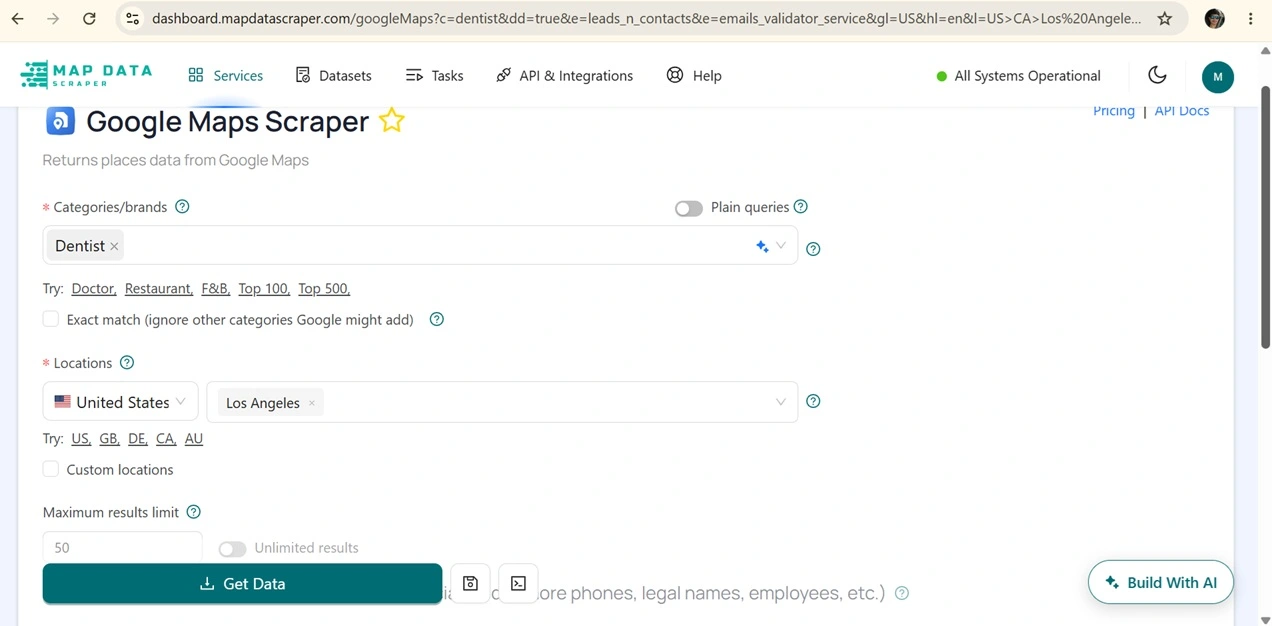
For example, searching “dentists in Los Angeles” may return general dentists, cosmetic dentists, pediatric dentists, orthodontists, dental labs, dental supply companies, and multi-location chains. If your offer is built for independent dental clinics that need a better website or appointment funnel, the raw scrape is too broad.
This is where most Google Maps lead generation workflows waste time. They scrape first and decide later. That pushes the cleanup work to the sales team, the VA, or the person uploading the CRM file. By the time outreach begins, the list has already lost momentum.
A better workflow is to scrape with cleanup in mind. Before running the Google Maps Scraper, decide which listings should be removed, which listings should be enriched, and which listings deserve priority. That keeps the list focused from the first pull.
Step 1: Define the Buyer by Niche, Location, and Fit
The first step is to define the target buyer with enough detail that the scraper can return useful records. “Local businesses” is too broad. “Independent cosmetic dentists in Los Angeles with a public website and 30+ reviews” is a workable segment.
Start with the offer. A web design agency should not build the same lead list as a recruiting firm, a SaaS company, or a local SEO consultant. The same Google Maps data fields can support different campaigns, but the filter should match the service being sold.
Use a clear filter before pulling data. For example:
Target: independent cosmetic dentists
Location: Los Angeles, CA
Contact path: website or phone visible
Review signal: 30+ reviews
Business status: operational
Exclude: dental labs, suppliers, large chains, unrelated medical offices
That filter creates a lead list with a sharper purpose. You are no longer scraping “dentists.” You are building a list of businesses that fit one specific offer.
Build the List Around Fit First
Use MapDataScraper to pull local business records by niche, location, and business signals before uploading anything to your CRM.
Step 2: Pull the Fields That Decide Lead Quality
The next step is to extract fields that help decide whether a business belongs in the campaign. A name and phone number are not enough for a targeted list.
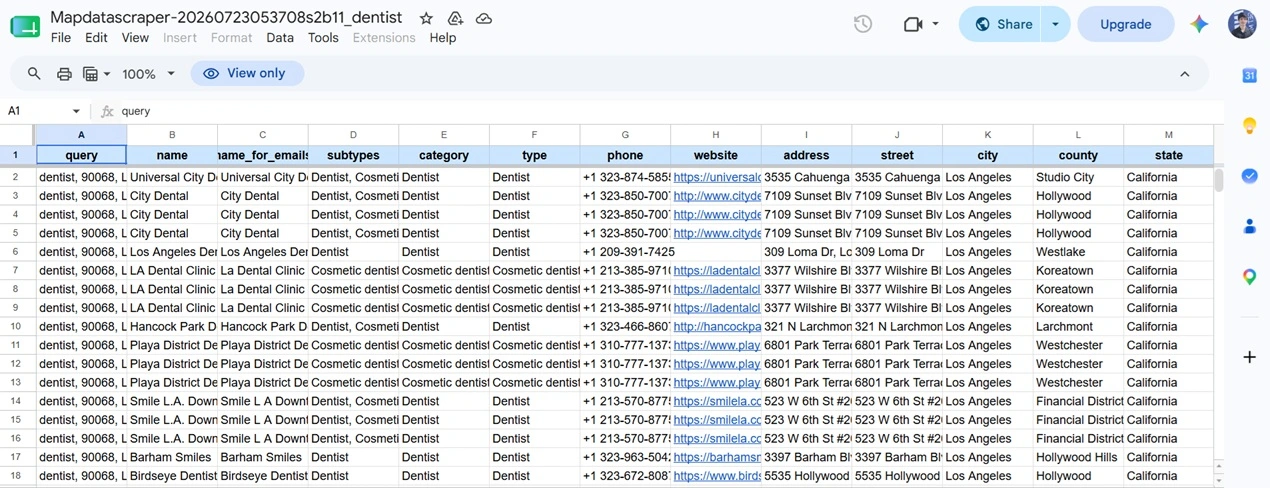
For most local lead lists, start with these fields: business name, category, address, phone number, website, rating, review count, business status, Google Maps URL, opening hours, and location data. These fields help you confirm the listing is real, local, active, relevant, and contactable.
Do not scrape extra fields just to make the file look complete. Every column should support a decision. The website helps with enrichment. The category confirms fit. The rating and review count help with prioritization. The address confirms the location. Business status keeps closed records out of the list.
Use the existing Google Maps Data Scraper for lead generation guide when you need the broader explanation of what the tool extracts. This article is focused on turning that data into a targeted list that is ready to use.
Step 3: Enrich the List With Emails, Websites, and Contact Paths
A Google Maps listing may give you a phone number and website, but that does not always make the business outreach-ready. A targeted lead list needs a usable contact path.
After the first pull, enrich the records that have websites. The goal is to find published emails, contact pages, social profiles, or other contact details that make outreach possible. This is where a raw business record becomes closer to a real prospect.
Use the Emails & Contacts Scraper for businesses that have websites in the export. Then route records into clear groups: email-ready, phone-first, website-only, manual review, or remove.
This matters because not every business should go into the same sequence. A business with a verified email can go into an email workflow. A business with only a phone number may be better for a call list. A business with no useful contact path should not be pushed into outreach just to keep the list size high.
Step 4: Clean the List Before Uploading It to a CRM
Cleaning the list before CRM upload prevents duplicate outreach, bad targeting, and wasted follow-up. This is where many lead lists become stronger without adding a single new row.
Remove closed businesses first. Then remove duplicates, wrong-category listings, large chains that do not match the offer, businesses outside the target city, and records with no realistic contact path. Also check for listings that appear in multiple searches. A clinic may show up under “dentist,” “cosmetic dentist,” and “emergency dentist.” That does not mean it should be contacted three times.
Keep cleanup practical. Add a simple status column with values like:
- Keep
- Remove
- Duplicate
- Wrong category
- Phone-first
- Email-ready
- Manual review
This gives the list structure before it enters a CRM. It also protects the sales team from contacting the same business twice because it appeared in more than one Google Maps search.
Step 5: Segment Leads by Outreach Angle
A targeted lead list becomes more valuable when it is segmented by outreach angle. The same message should not go to every business in the file.
A business with no website needs a different opener from a business with 600 reviews and a slow contact page. A business with low ratings needs a different angle from a business with strong reviews but weak online booking. Google Maps data gives you the signals needed to group leads before outreach begins.
Use simple segments that match visible data. Do not guess revenue, staffing, or private business problems. Build the angle from fields you can actually see: website status, rating, review count, category, location, opening hours, and review text.
| Visible Signal | Segment | Outreach Angle |
|---|---|---|
| No website listed | Website gap | “People can find your profile, but there is no site to compare services before calling.” |
| Many reviews but weak website | Conversion gap | “Your profile shows demand, but the website may not be carrying the same trust.” |
| Low rating with many reviews | Reputation gap | “There may be repeated feedback patterns worth reviewing.” |
| Phone visible, no email found | Phone-first | “Better for call outreach than cold email.” |
| Multiple nearby locations | Territory list | “Useful for location-based sales assignment.” |
This is where a list becomes more than a spreadsheet. It becomes a campaign plan.
Example: Building a Targeted Dentist Lead List in Los Angeles
Here is how the workflow looks in a real campaign. This example is for a marketing agency selling website and appointment-funnel services to dental practices in Los Angeles.
A weak search would be:
dentists in Los Angeles
That search is too broad. It may include clinics, specialists, labs, chains, and irrelevant listings. A stronger campaign breaks the search into segments:
cosmetic dentists in Los Angeles
pediatric dentists in Los Angeles
emergency dentists in Los Angeles
family dental clinics in Los Angeles
After the scrape, the list should be cleaned by business type, location, status, website presence, review count, and contact path. A realistic workflow might start with 500 raw records, then reduce the list after cleanup. Some records will be duplicates. Some will be suppliers or labs. Some will have no usable contact path. Some will be phone-first. Some will be email-ready.
The smaller cleaned list is more valuable than the larger raw export because it is usable. The outreach team can now assign records by segment, route phone-first leads separately, and write messages based on visible signals instead of sending the same generic pitch to every dental listing.
Common Mistakes That Make Google Maps Lead Lists Weak
The first mistake is using a broad keyword. Searching “businesses in Los Angeles” or “restaurants near me” creates a messy file. Use the exact category and city that match the campaign.
The second mistake is skipping dedupe. Similar searches often return overlapping results. If the same business appears in multiple files, clean it before CRM upload.
The third mistake is treating every phone number as a decision-maker path. Some numbers go to front desks, call centers, or general reception. That does not make the record bad, but it changes the outreach route.
The fourth mistake is ignoring website status. A missing website, weak website, or strong website changes the message. The same offer will not fit each group the same way.
The fifth mistake is uploading the list too early. A CRM should receive a cleaned, labeled, segmented file, not the first raw export.
The sixth mistake is sending one generic message to the whole list. A targeted list deserves segmented outreach. A “no website” lead, a “low rating” lead, and a “high review count” lead need different opening lines.
Where MapDataScraper Fits in the Workflow
apDataScraper helps with the data collection layer of a targeted lead list. Instead of manually copying Google Maps results into a spreadsheet, you can use the Google Maps Data Scraper to collect structured local business records by category and location.
The workflow is:
Define the target → scrape the right fields → enrich contact paths → clean the list → segment by outreach angle → upload to CRM
For contact enrichment, use Emails & Contacts Scraper. For review-based segmentation, use Google Maps Reviews Scraper. The point is not just to export data faster. The point is to build a list that is clean enough for sales, marketing, recruiting, or local outreach teams to use.
Turn Google Maps Data Into a Contact-Ready List
Start with one niche and one location. Pull the records, enrich the contact path, clean the file, and segment the leads before outreach.
Quick Checklist Before You Use the List
Before sending outreach, check the list one more time. A targeted lead list should pass these checks:
- The business category matches the campaign.
- The city or service area is correct.
- Closed listings are removed.
- Duplicate businesses are removed.
- Chains and franchises are handled separately.
- Each lead has a contact path.
- Email-ready and phone-first records are separated.
- The outreach angle is visible from the data.
- The file has a clean status column.
- The CRM upload fields are mapped correctly.
A list that passes these checks is smaller than the raw export, but it is stronger. It gives the team fewer bad records, better segmentation, and clearer reasons to reach out.
Final Takeaway
A targeted lead list is not created by scraping every business in a city. It is created by choosing the right niche, pulling the fields that prove fit, enriching the contact path, removing bad records, and segmenting the list before outreach.
Google Maps gives you the local business data. A scraper helps collect it faster. But the list becomes valuable only after cleanup and segmentation.
Do not measure the campaign by the size of the raw export.
Measure it by how many records are actually usable.
A strong lead list should tell the outreach team who the business is, why it fits, how to contact it, and what angle to use.
That is the difference between a spreadsheet and a targeted lead list.
FAQ
Most frequent questions and answers
Build a targeted lead list using Google Maps Scraper by choosing a specific niche and location, extracting business fields, enriching contact paths, removing duplicates, and segmenting leads by outreach angle before CRM upload.
Useful fields include business name, category, address, phone number, website, rating, review count, business status, Google Maps URL, opening hours, and location data. These fields help qualify and segment the list.
Google Maps listings usually show business details like phone numbers, websites, addresses, ratings, and categories. Emails are usually collected through website enrichment after the business website is found.
Not always. A smaller cleaned list is often better than a large raw export because it removes bad matches, duplicates, closed listings, and businesses with no usable contact path.
Segment Google Maps leads by visible business signals such as website status, rating, review count, category, location, and contact path. Then write outreach based on the segment instead of sending one generic message to the whole list.
Want to build a cleaner Google Maps lead list before outreach?
Use MapDataScraper to collect local business records, enrich contact paths, and prepare a targeted list your sales team can actually use.