
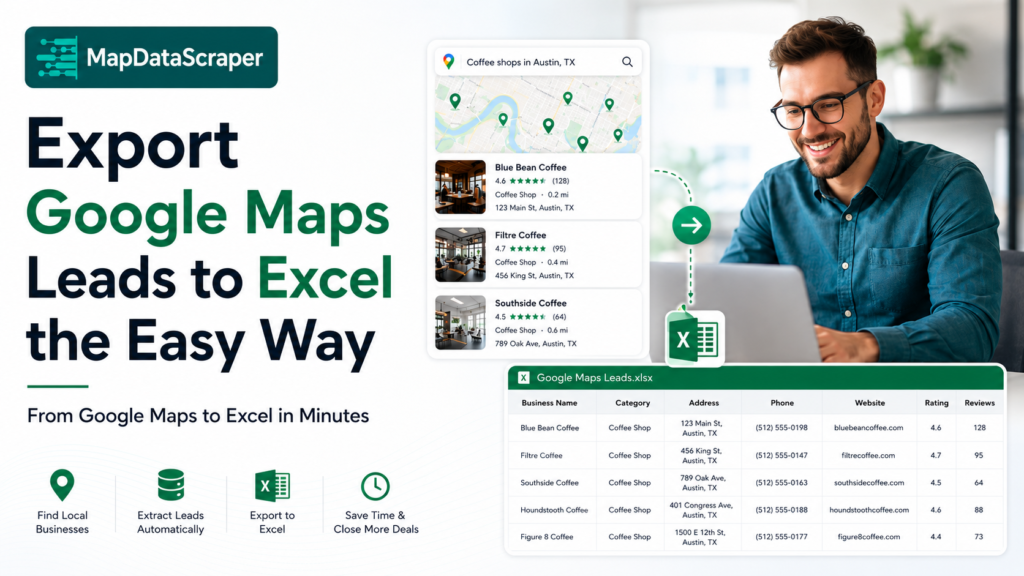
Building a local business list manually from Google Maps sounds simple until the list starts to grow. For a few businesses, you can open each listing, copy the business name, phone number, address, website, rating, and other details into a spreadsheet, then move on to the next company. Once you need hundreds of businesses across one or several locations, however, that process quickly becomes repetitive and difficult to manage.
A more practical way to export Google Maps leads to Excel is to collect the available business information in bulk, download the structured results, and open that data in Excel instead of copying listings one by one. This gives you a working dataset without copying every listing field one by one.
MapDataScraper is designed for this type of workflow. It helps collect publicly available Google Maps business information such as business names, addresses, phone numbers, websites, ratings, reviews, categories, and other listing data without requiring you to build your own scraping script.
In this tutorial, I will show you how to go from a focused Google Maps search to an Excel-ready local business list, which fields are worth keeping, and what you should check before treating the exported businesses as qualified leads.
How Do You Export Google Maps Leads to Excel?
The basic workflow is to define the business type and location you need, collect the relevant Google Maps records with MapDataScraper, download the structured results, and open the file in Excel. From there, you can review the dataset for category fit, location, duplicates, missing information, and the fields that matter for your project.
The important point is that the exported spreadsheet is the starting dataset. If your goal is lead generation, you should still review and qualify the businesses before using the list for outreach.
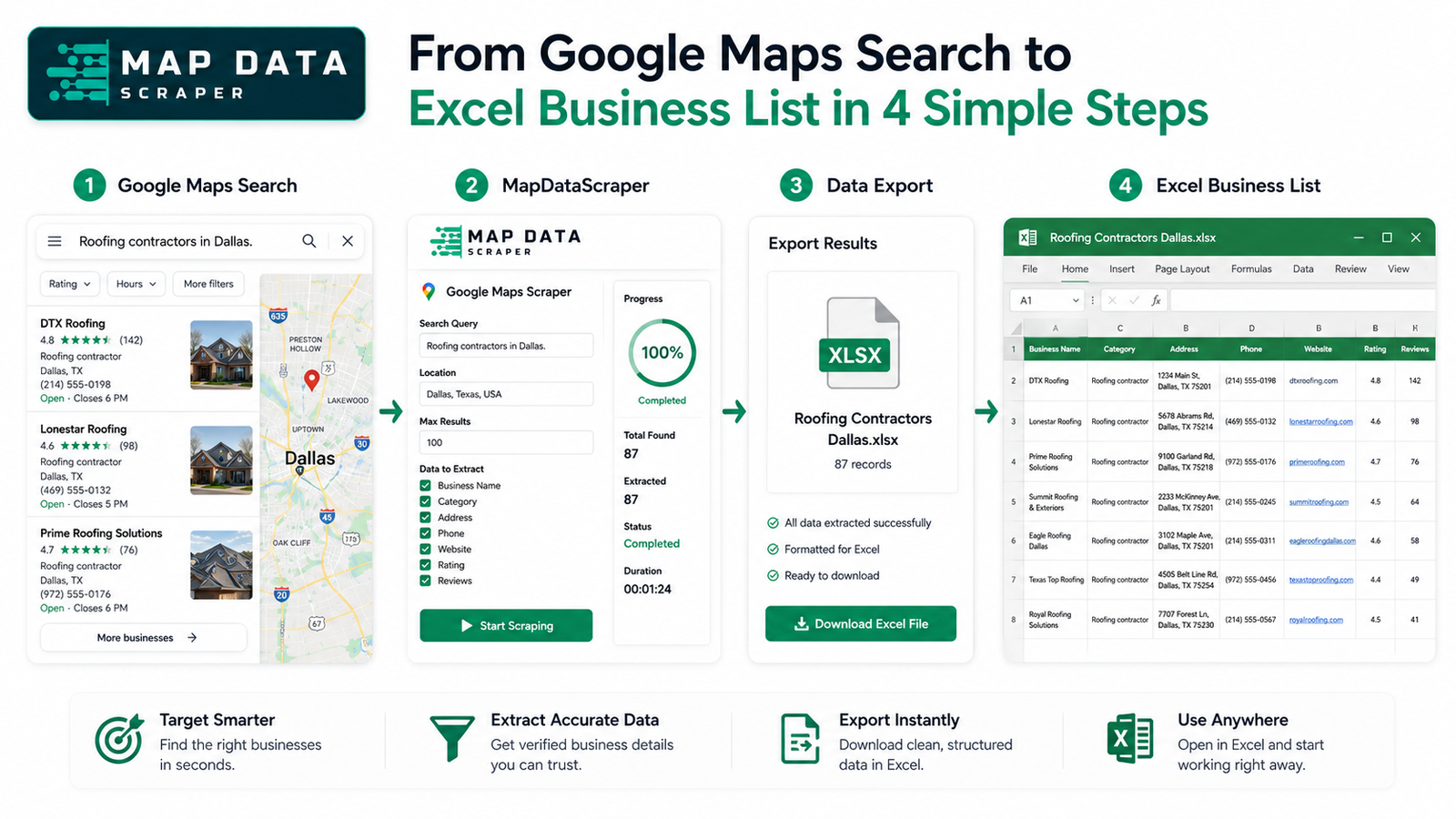
Step 1: Start With a Specific Business and Location
The quality of the final spreadsheet depends heavily on the search you start with. If the original search is too broad, you may successfully collect a large amount of data but still spend hours removing businesses that have nothing to do with the project.
For example, searching for “businesses in Texas” may produce a large market dataset, but it does not give a sales team much direction. A search such as “roofing contractors in Dallas,” “dentists in Miami,” or “coffee shops in Austin” gives the extraction a clearer purpose from the beginning.
I like to define the search around two basic dimensions: the business category and the location. The category defines the market I want to investigate, while the location defines the territory where those businesses need to operate.
Before starting an extraction, it helps to complete a simple sentence:
“I need [business type] in [location] because [business purpose].”
For example, you may need roofing contractors in Dallas because you are building a local prospect list for a website-design campaign. That tells you much more about the dataset you need than simply saying that you want more leads.
Start by opening Google Maps and searching for the exact business category and location you want to research. The narrower and more intentional the search is, the easier the resulting dataset will be to work with later.

Step 2: Collect the Google Maps Business Records With MapDataScraper
Once the search is clear, the next step is turning the individual Google Maps listings into structured rows of data. This is where MapDataScraper removes most of the repetitive copy-and-paste work.
Instead of opening every listing individually and transferring the information into Excel by hand, you can use MapDataScraper to collect the available business information from the search.
Depending on the information available on each listing, useful fields may include business name, category, address, phone number, website, rating, review count, opening hours, and location information.
The important change is that you are no longer working one business at a time. You are turning the search results into a dataset that can later be sorted, cleaned, reviewed, and analyzed.
If you are completely new to the product and want a broader walkthrough before following this Excel workflow, read How to Use Google Maps Data Scraper: Step-by-Step Guide.
Skip Manual Copying and Build the List Faster
If you already know the business category and location you want to research, use MapDataScraper to collect the available Google Maps business records instead of transferring each listing into Excel manually.
Export Google Maps Leads to Excel With MapDataScraper
Step 3: Decide Which Business Fields You Actually Need
It can be tempting to keep every available column simply because the data is there, but more columns do not automatically create a better list. I prefer to think about how the spreadsheet will actually be used.
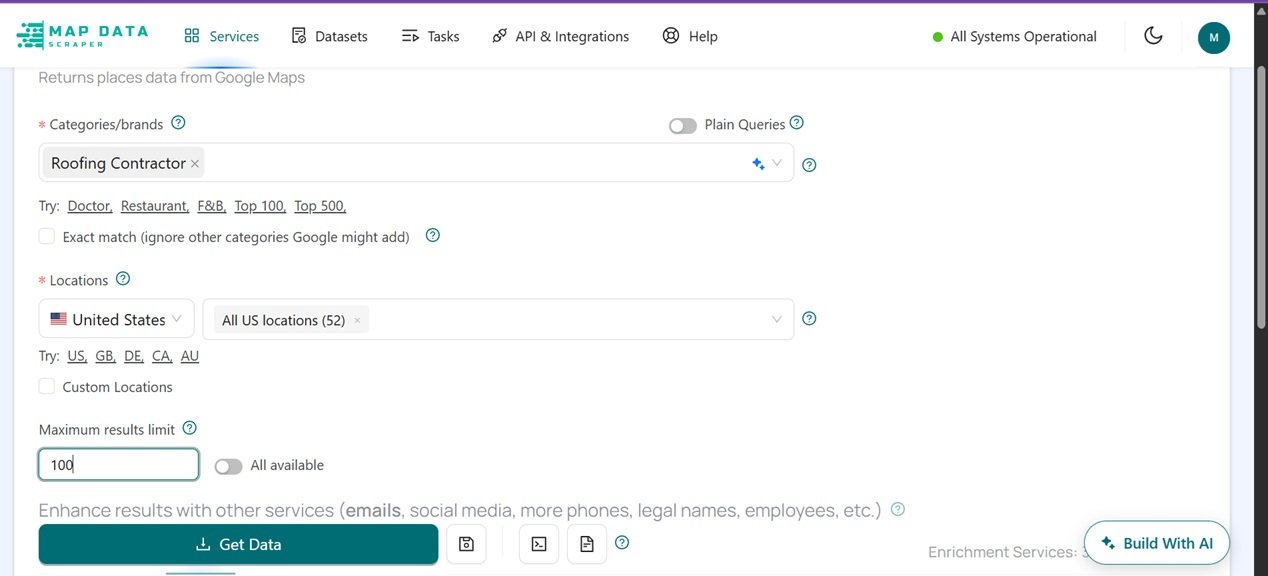
For a local prospecting campaign, the business name identifies the company. The business category helps confirm whether the company really matches the market you intended to target, while the address or city tells you whether the business is inside the correct geographic territory.
The phone number becomes important when calling is part of the outreach process. The website is useful for company research and becomes especially important when the offer relates to website design, digital marketing, software, or online visibility.
Ratings and review counts can provide another layer of context. A company with hundreds of reviews may show much more visible customer activity than another business with only a handful of reviews, even when both appear in the same category.
For another project, the important fields may be different. A market researcher may care more about geographic coverage, categories, ratings, and review activity than phone numbers. The best dataset is therefore not necessarily the one with the most columns. It is the one containing the information needed to answer the business question behind the extraction.
Step 4: Download the Results and Open Them in Excel
After the collection is complete, download the results from MapDataScraper. The objective is to move the business information from the extraction interface into a structured file where you can work with the rows and columns more easily.
Once the file is downloaded, give it a descriptive name. A filename such as export-1 may become confusing after you have several projects. Something like dallas-roofing-contractors-google-maps or miami-dentists-local-business-list makes it immediately clear what the dataset contains.
If the exported file is CSV, Excel can open it directly. Microsoft also explains how to import CSV files through the Data → From Text/CSV workflow when you want more control over how the columns are interpreted.
For authoritative instructions, see Microsoft’s guide to importing or exporting text and CSV files in Excel.
This matters when business data includes fields such as ZIP codes, phone numbers, or other values that you may want Excel to preserve as text rather than automatically reformat.
After the file opens, you now have a structured local business dataset that can be filtered, sorted, cleaned, and prepared for the next step in your workflow.
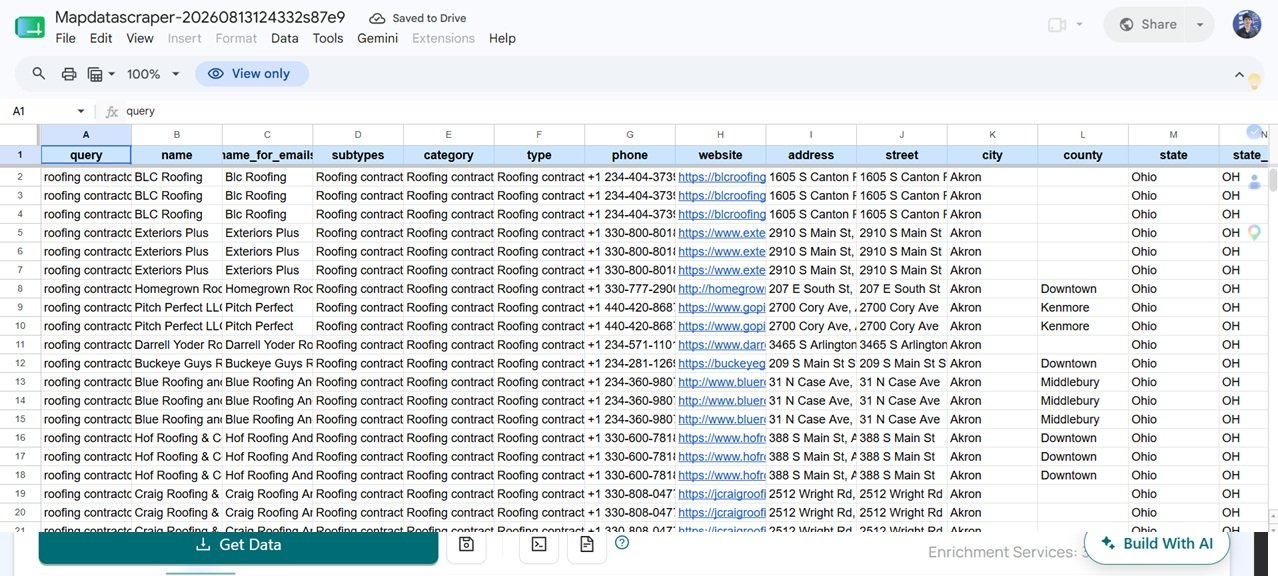
Step 5: Check the Excel File Before Using It
Opening the file in Excel should not be treated as the end of the process. If you plan to use the data for sales prospecting, this is where you should begin checking whether the records actually fit the campaign.
I normally start by looking for obvious duplicates. A company may appear more than once because of multiple branches, different searches, or small variations in business names. Reviewing those records prevents the final list from becoming artificially large.
The next check is category fit. A search for roofing contractors, for example, may still return building suppliers, general contractors, or companies that provide roofing only as a secondary service. Those records may be useful for some projects, but they should not automatically become qualified roofing leads simply because they appeared in the original search.
Geography matters as well. If the campaign only covers Dallas, a roofing company in Fort Worth may be a legitimate and active company but still fall outside the current sales territory.
Finally, I look at the fields connected to the campaign itself. If calling is the main outreach channel, I want to know how many records have usable phone numbers. If the offer is website design, I may want to see which businesses do not list a website. If the campaign involves reputation management, rating and review activity may deserve more attention.
A Real Example: Turning the Export Into a Working Lead List
Suppose the exported spreadsheet contains a roofing contractor in Dallas with 118 reviews, a phone number, and no website listed.
If I am building a website-design prospecting campaign, that record deserves attention because several useful signals appear together. The company matches the niche, operates in the target market, appears to have real customer activity, has a reachable phone number, and shows a potential website opportunity.
Another roofing company may have 240 reviews and a strong existing website. It still fits the category and location, but it may be a lower priority for the same campaign because the visible website opportunity is weaker.
A building-materials supplier may appear in the same dataset. The company may be legitimate and active, but the category does not fit what I am selling, so I would normally remove it from this campaign.
A roofing company in Fort Worth presents a different problem. The business type is correct, but if the client’s sales territory only covers Dallas, the record still does not belong in the immediate outreach list.
This is why the exported spreadsheet should not automatically be treated as the finished lead list.
The export tells you which business records were collected. Qualification tells you which of those businesses actually make sense for the use case.
If you want to go deeper into the wider business-data and lead-generation workflow after this tutorial, read Google Maps Scraper: The Complete Guide to Extracting Business Data & Lead Generation.
Exported Businesses and Qualified Leads Are Not the Same Thing
If MapDataScraper returns 2,000 businesses, you do not automatically have 2,000 qualified sales leads. You have 2,000 business records that may contain potential prospects.
For sales prospecting, those records may still need to be reviewed for category fit, territory, website status, contactability, business activity, and any other signal connected to the offer.
For market research, you may intentionally keep a much broader portion of the same dataset because the objective is coverage rather than outreach.
The underlying business data can be the same. What changes is the question you are trying to answer with it.
This distinction is one reason I recommend deciding the purpose of the dataset before beginning the extraction rather than collecting everything first and trying to invent a use for it afterward.
Turn the Export Into an Actionable Lead List
Exporting the business data is only the first step. Once the records are in Excel, the next job is deciding which businesses are worth deeper work.
Start by removing obvious mismatches such as wrong categories, businesses outside the target territory, duplicates, and closed businesses. Then identify the records that fit the campaign but still have missing contact information.
Those stronger-fit records are the ones worth enriching before outreach. If you need to go deeper, see how to extract additional phone numbers and business emails from Google Maps.
The workflow becomes:
Extract the Google Maps data → qualify the businesses → enrich the strongest records → prepare them for action.
This keeps enrichment focused on businesses that already have a reason to stay in the list instead of spending time on every raw record.
When Excel Is Enough for the Next Step
Excel can be enough for many small and medium-sized local research projects. Once the business records are in a spreadsheet, you can sort by location, filter categories, identify missing fields, remove duplicates, and add your own qualification columns.
For example, you might add a Fit column and classify records as High, Medium, or Low. You could create a Website Opportunity field to separate businesses with no website from companies that already have one.
A Contact Status column can show whether a usable phone number or another contact method is available, while a Priority field can tell someone which businesses deserve review first.
For larger projects, the cleaned dataset may eventually move into a CRM, database, sales platform, or analytics environment. Excel is still a useful intermediate step because it lets you inspect what was actually collected before sending the data somewhere else.
Common Mistakes When Exporting Google Maps Leads
One of the most common mistakes is starting with a search that is too broad. A large export can feel successful because it produces many rows, but those rows create more cleanup work when the business category and territory were never clearly defined.
Another mistake is keeping every business simply because it appeared in the search results. Google Maps can surface related business types, nearby locations, and records that may not fit the exact purpose of the campaign. The exported list still needs interpretation.
Missing information is also easy to misunderstand. A business without a website is not automatically a bad record. For a website-design campaign, that may actually be the opportunity you are trying to find.
Likewise, a missing email does not necessarily mean the company is a poor prospect. It may simply mean additional contact research or enrichment is required.
Finally, avoid sending a completely raw export directly to a sales team when the purpose is outreach. The salesperson should not be responsible for discovering that many records are in the wrong category or outside the service territory. A qualification step makes the resulting list much more useful.
Related MapDataScraper Guides
If you need a broader introduction to the platform before following this workflow, read How to Use Google Maps Data Scraper: Step-by-Step Guide.
If you want a broader view of collecting Google Maps business information for lead generation, continue with Google Maps Scraper: The Complete Guide to Extracting Business Data & Lead Generation.
If you are deciding between extracting visible Google Maps information and using Google’s official API ecosystem, read Google Maps Scraper vs Google Places API: Which One Should You Use?.
Those three internal links are enough. They connect the article to the wider MapDataScraper topic cluster without turning every paragraph into a link.
FAQ
Most frequent questions and answers
Yes. The practical workflow is to collect the relevant Google Maps business information with MapDataScraper, download the structured data, and open it in Excel for filtering, cleaning, qualification, or analysis.
Business name, category, address, phone number, website, rating, review count, location information, and opening hours can all be useful depending on the campaign. The exact fields should match what you plan to do with the list.
Not necessarily. For prospecting, review the businesses for category fit, territory, relevance to the offer, contactability, and any opportunity signals that matter to the campaign. For market research, broader coverage may make more sense.
No. The meaning of a missing website depends on the campaign. If you sell website design or another digital service, a missing website may actually be one of the reasons the business deserves closer review.
No. MapDataScraper is designed as a no-code way to collect Google Maps business and location data, so you do not need to build or maintain your own scraping scripts to follow this workflow.
Export Google Maps Leads to Excel With MapDataScraper
You do not need to keep opening Google Maps listings one by one just to build a spreadsheet.
Start with the business category and location you need, collect the relevant Google Maps business data with MapDataScraper, download the structured results, and open them in Excel for cleaning, qualification, and outreach preparation.
Export Google Maps Leads to Excel With MapDataScraper