

A Google Maps business with no address can create a serious mapping problem. If an agency treats every row as a storefront, a service-area business may appear as a false or unsupported location. The fix is not to delete every blank-address record. First, check whether the export contains explicit service-area evidence, then review the address and coordinate fields together, assign a location-model status, and send uncertain rows to manual review. This guide gives agencies and data teams a no-code workflow for deciding which records can be mapped as public locations, which should remain service-area only, and which should stay off exact-location maps until verified.
Export the Location Fields Before Mapping
Map Data Scraper
Start with a small service-heavy category and keep the original address, identifier, and coordinate fields intact.
Start With MapDataScraperQuick answer: A Google Maps business with no visible address may be a pure service-area business, but a blank field alone does not prove that status. Use an explicit service-area indicator when the export provides one, review address and coordinate fields together, and assign each row one of three actions: map as a public location, keep as service-area only, or send to manual review.
Why Blank-Address Records Create Bad Maps
A missing address becomes a problem when the export is treated as though every row represents a customer-facing storefront.
That can create:
- map pins for locations customers cannot visit;
- directories displaying unsupported addresses;
- inaccurate sales or service-territory maps;
- coordinates presented as precise storefronts without evidence;
- incomplete records mistakenly classified as confirmed service-area businesses.
Google allows businesses that travel to or deliver to customers but do not serve customers at their business address to hide that address and display a service area instead. Plumbers and cleaning services are common examples in Google’s Business Profile guidelines.
This means a blank address can be intentional.
It does not automatically mean:
- the listing is fake;
- the scraper failed;
- the business has no operating base;
- the row should be deleted.
But a blank address is also not enough to confirm service-area status by itself.
The field could instead be missing because of:
- incomplete source data;
- an unavailable field;
- a temporary listing change;
- another business or place type;
- a collection issue.
The solution is classification not deletion and not an invented map pin. Before deciding how to map the row, review the available source fields and compare them with MapDataScraper’s guide to Google Maps business-data fields.
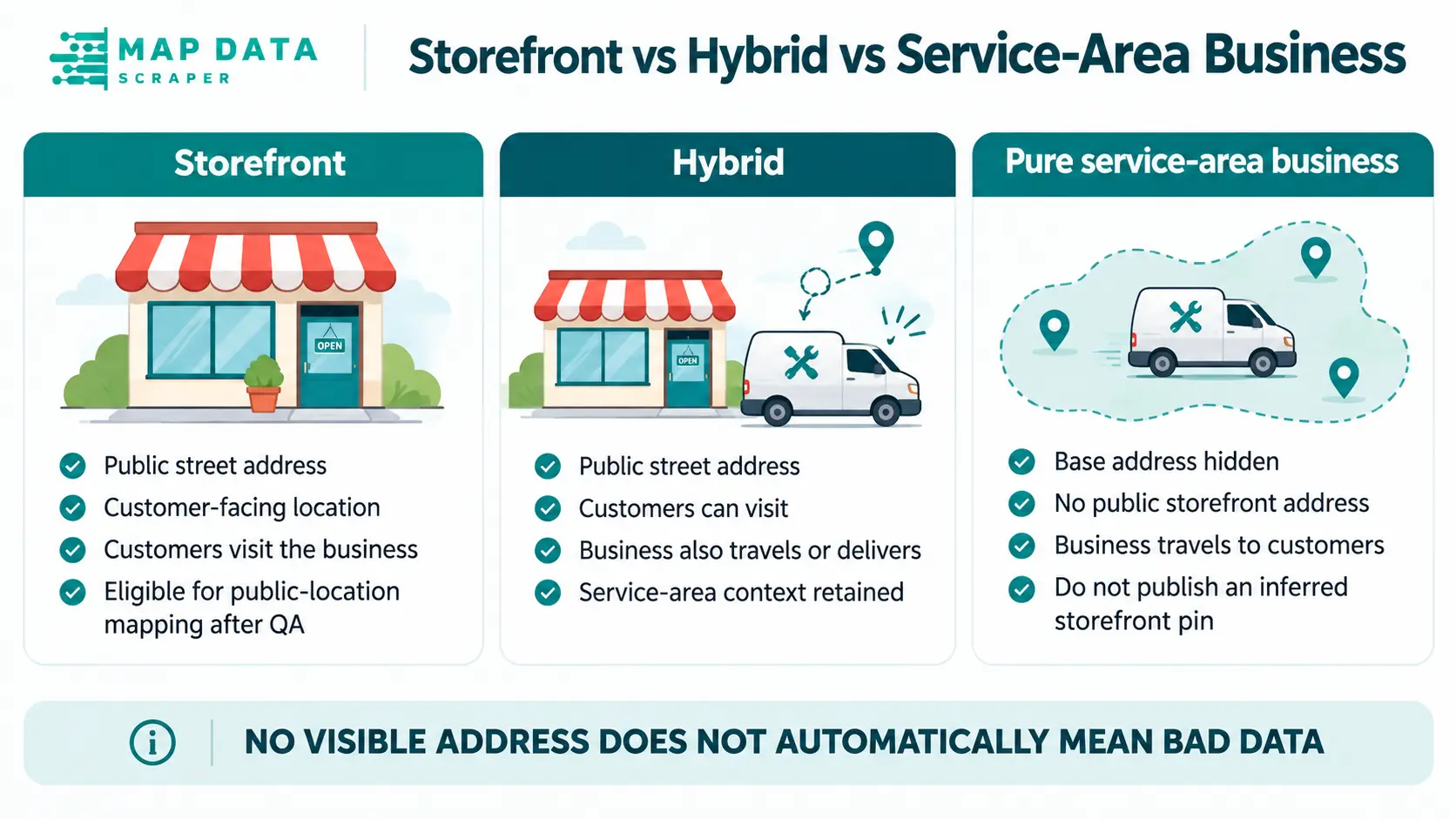
Storefront, Hybrid, and Service-Area Businesses Are Different
Use Google’s location models rather than treating every business as either “has an address” or “does not have an address.”
Storefront business
A storefront serves customers at its public business address.
A complete public address can make the row eligible for mapping, but the address and coordinate fields should still pass ordinary location QA.
Hybrid business
A hybrid business serves customers at its address and also visits or delivers to customers.
Google’s guidance for service-area and hybrid businesses explains that hybrid businesses can display both a public address and a service area.
If the export contains a public address but no separate hybrid indicator, use a neutral label such as:
PUBLIC_ADDRESS — HYBRID STATUS UNKNOWN
Do not assume the business operates only from the storefront.
Pure service-area business
A pure service-area business visits or delivers to customers but does not serve them at its business address.
Google’s current Places data-field documentation includes a pureServiceAreaBusiness concept. Its documentation also explains that some physical-location fields may not be available for pure service-area records.
That is official Google terminology.
It does not mean a MapDataScraper file will necessarily use the same column name.
Use the exact header and value returned in the current export. If no explicit service-area field exists, use the conservative classification workflow below.
Google’s official API fields and the columns available in a scraper export are not necessarily identical. MapDataScraper’s comparison of a Google Maps Scraper and the Google Places API provides additional context when interpreting missing or differently named fields.
Export Only the Fields Needed to Make the Decision
Use a service-heavy category for the first test.
A practical example is:
Plumbers in Austin, Texas
Google specifically uses plumbers as an example of businesses that may visit customers rather than serve them at a public address.
Keep the task setup simple:
Category: Plumber
Location: Austin, Texas, United States
Business status: Operational, when the current filter is available and appropriate
Optional enrichment: Off for the location-model test
Duplicate removal: Enabled
Format: CSV or XLSX
Collection date: Record the actual task date
MapDataScraper supports no-code category and location searches followed by structured export. For the current interface and task settings, follow the Google Maps Data Scraper tutorial. Before selecting the columns, review what data a Google Maps scraper can extract so the task retains the identifiers, addresses, and location fields needed for QA.
Retain these source fields when available:
- business name;
- Place ID or Google ID;
- Google Maps URL;
- category;
- full address;
- street;
- city;
- state;
- postal code;
- latitude;
- longitude;
- business status;
- phone;
- website;
- any explicit service-area field;
- source query;
- collection date.
Not every listing will contain every field. Treat the export as a collection of available values rather than assuming every row will contain every possible business field.
Do not overwrite the source columns while classifying records.
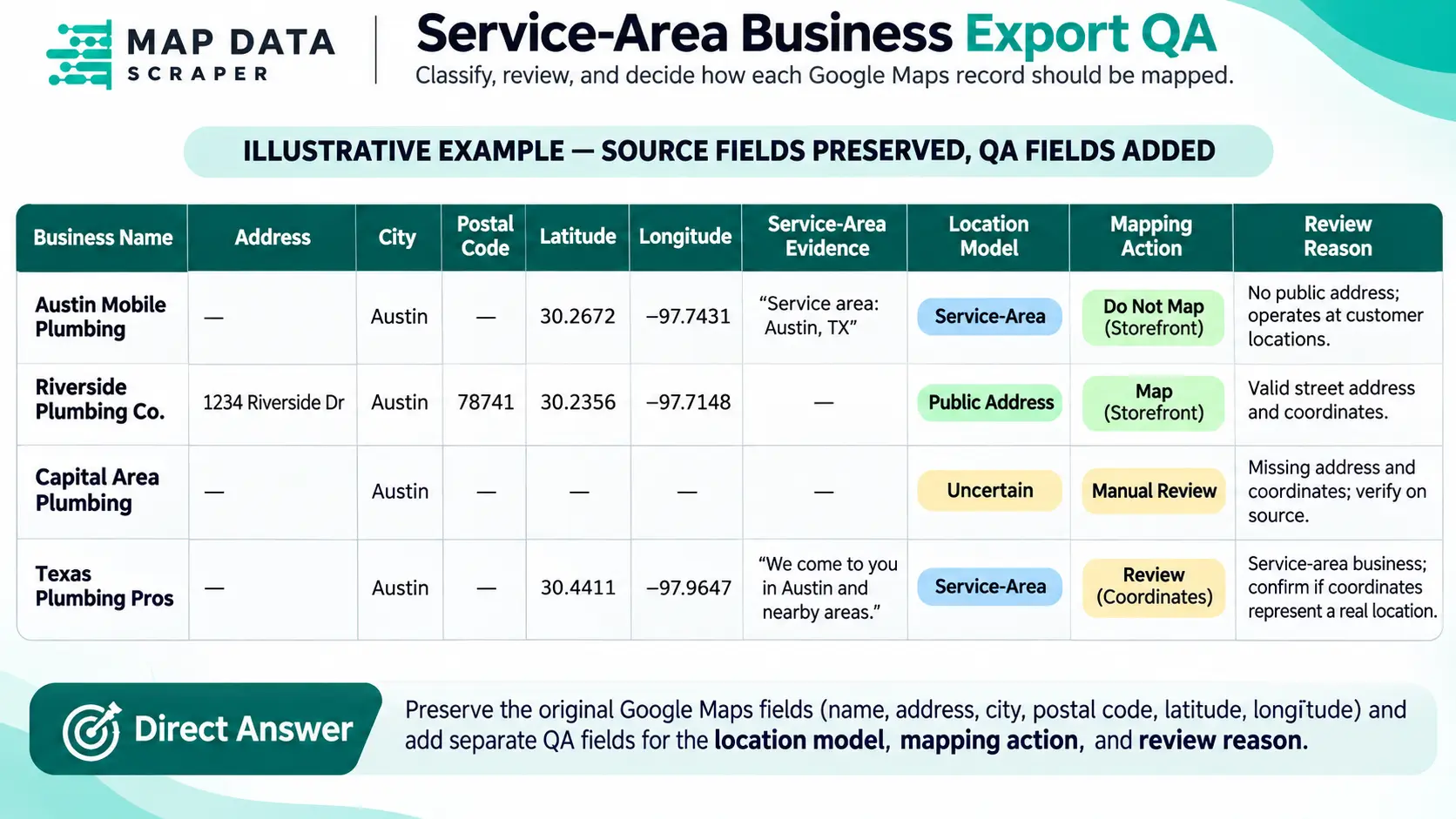
Add three separate QA columns:
location_modelmapping_actionreview_reason
Those three fields are enough to solve the immediate mapping problem.
Preserve the Original Export Fields
Map Data Scraper
Configure the task using the current product tutorial, then add your QA fields in a separate spreadsheet layer.
Review the Google Maps Data Scraper Tutorial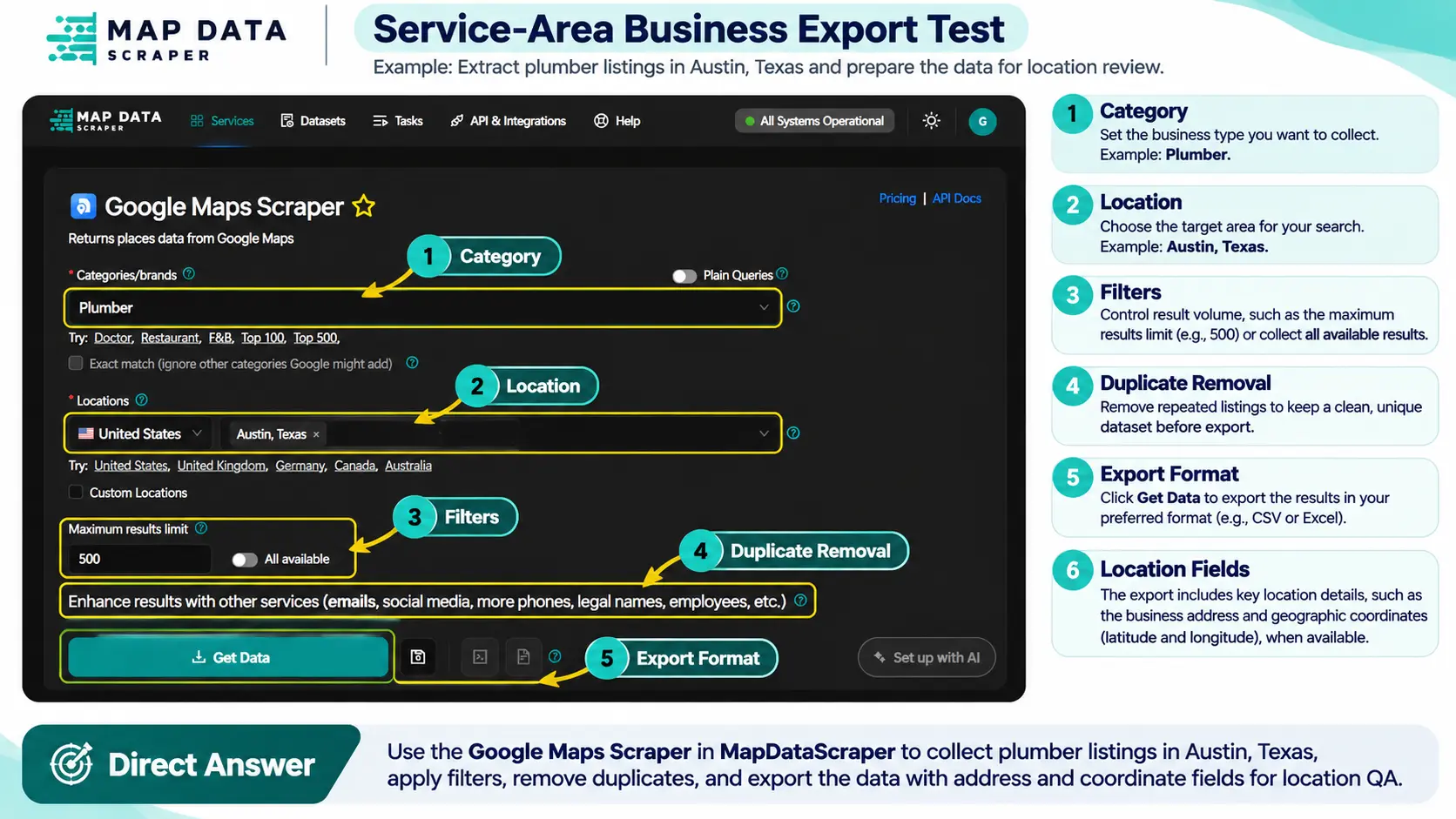
Classify Each Row Without Guessing
Apply the strongest available evidence first.
Explicit Service-Area Evidence
If the current export contains an explicit, documented field showing that the record is a service-area business:
Location model:SERVICE_AREA
Mapping action:SERVICE_AREA_ONLY
Review reason:Explicit service-area evidence
Do not map the record as a customer-facing storefront.
Do not construct or infer a hidden address.
Use the exact field name returned in the export. Do not rename it to Google’s API terminology unless that is genuinely the column provided by MapDataScraper.
Blank Address Without Explicit Evidence
If the address is blank but no service-area field is present:
Location model:UNKNOWN
Mapping action:MANUAL_REVIEW
Review reason:Blank address without explicit service-area evidence
A blank field supports a possible service-area classification, but it does not prove one.
Review:
- Google Maps URL;
- category;
- city or postal code;
- latitude and longitude;
- website;
- phone;
- other returned location values.
Do not automatically delete the row or map it as a storefront.
Coordinates on a Service-Area Record
If a record appears to be service-area only but still contains coordinates:
Location model:SERVICE_AREA_COORDINATE_REVIEW
Mapping action:DO_NOT_MAP_AS_STOREFRONT
Review reason:Coordinate meaning not confirmed
Keep the coordinate as source data, but do not assume it represents a customer-facing business address.
Google’s Places API reference treats pure service-area businesses as a distinct type of place. If MapDataScraper returns coordinates for a record that appears to be service-area only, preserve the values as source data but do not assume that they identify a customer-facing storefront.
Direct Classification Rules
| Export evidence | Location model | Mapping action |
|---|---|---|
| Explicit service-area evidence; no public address | Service-area | Keep off storefront map |
| Public address; no service-area evidence | Public-location candidate | Map after normal QA |
| Public address plus service-area evidence | Hybrid candidate | Map address and retain service-area note |
| Blank address; no explicit evidence | Unknown | Manual review |
| Service-area evidence plus unexplained coordinates | Coordinate review | Do not treat point as storefront |
| Missing address and coordinates | Unknown | Hold from exact-location map |
The objective is not to force every row into a location model.
It is to prevent uncertain records from becoming unsupported location pins.
The classification stage should preserve the original export while adding review fields. For broader guidance on normalizing and checking exported records, follow MapDataScraper’s workflow for cleaning and enriching Google Maps data.
Decide What Goes Into the Final Map
Every row should end in one of three output states.
Map as a public location
Use this status when:
- a usable public address is present;
- the row passes ordinary address and coordinate QA;
- there is no evidence that a hidden or uncertain base is being presented as a storefront.
Recommended status:
MAP_PUBLIC_LOCATION
Keep as service-area only
Use this status when:
- service-area status is explicitly supported;
- the business should remain in the dataset;
- the final output can represent it without claiming an exact storefront.
Possible display methods include:
- a separate service-area list;
- a different map layer;
- a generalized city- or postal-code marker;
- a non-geocoded service-area category.
Google allows service areas to be defined using cities, postal codes, or other named areas. Those names should not automatically be treated as precise analytical polygons. See Google’s service-area management guidance.
Recommended status:
SERVICE_AREA_ONLY
Send to manual review
Use this status when:
- the address is blank;
- service-area status is unknown;
- coordinates are unexplained;
- address and coordinate fields conflict;
- the source listing cannot be confirmed.
Recommended status:
MANUAL_LOCATION_REVIEW
Use this decision process:
Explicit service-area evidence?
    Yes:
        Public customer-facing address also present?
            Yes → Hybrid candidate → map address after QA
            No  → Service-area only → no storefront marker

    No:
        Complete public address present?
            Yes → Public-location candidate → map after QA
            No  → Manual review → do not map automatically
Clean Uncertain Records Before Visualization
Map Data Scraper
Normalize the location fields, preserve the source values, and document uncertain records before sending the file into a map, directory, CRM, or BI dashboard.
Review the Google Maps Data-Cleaning Workflow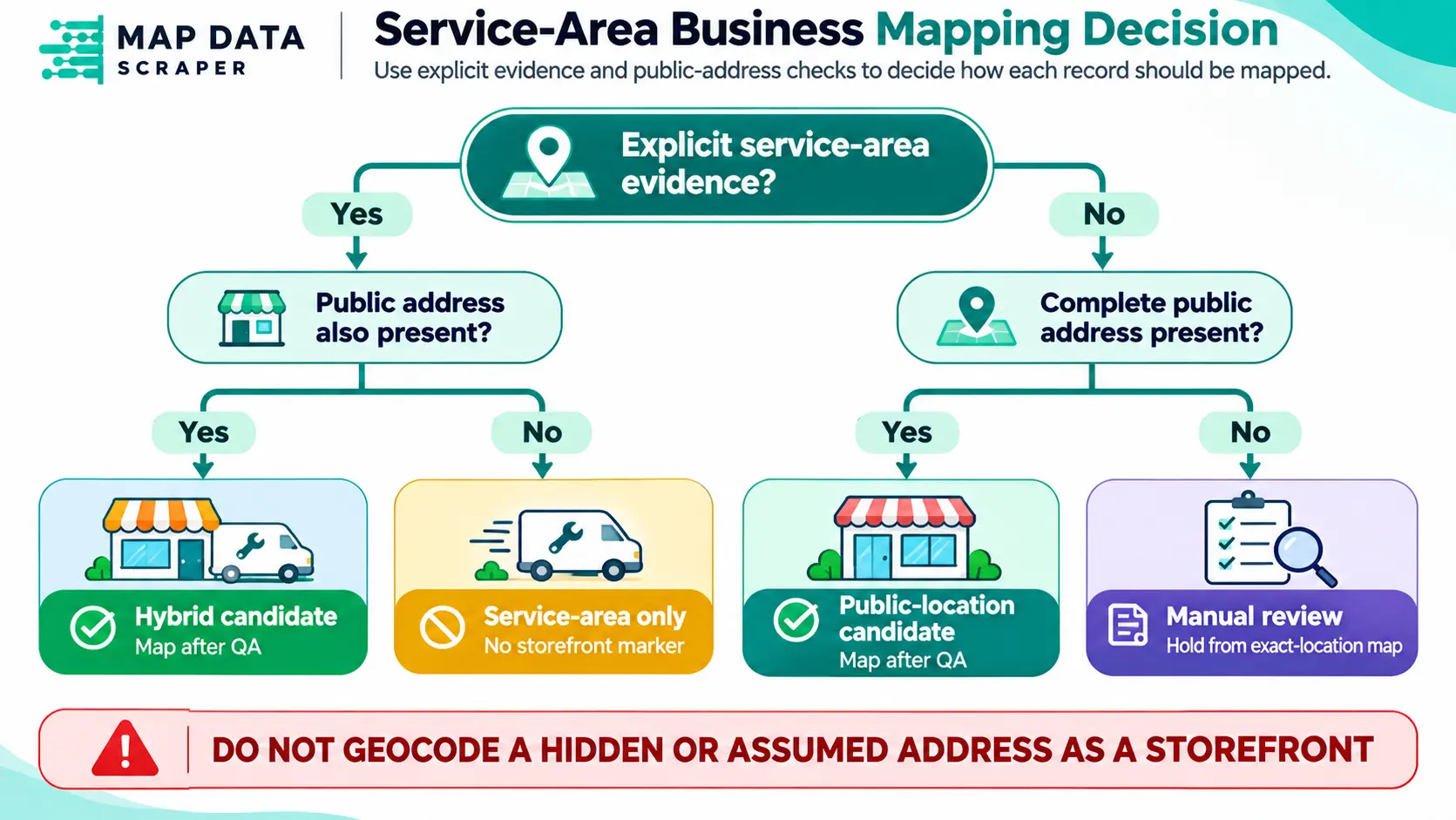
Build a Simple Agency QA Sheet
A reusable QA sheet should make each location decision explainable.
Keep the original export fields, add the classification columns separately, and preserve the collection date and source query. MapDataScraper’s guide to exporting Google Maps leads to Excel explains how to move the structured file into a spreadsheet for filtering, cleaning, and review.
Keep these columns:
| Column | Purpose |
|---|---|
| Business name | Identify the record |
| Place ID / Google ID | Preserve the source identifier |
| Maps URL | Open and verify the listing |
| Source query | Show how the row was collected |
| Collection date | Judge freshness |
| Export address | Preserve the original address |
| City / postal code | Add area context |
| Latitude / longitude | Preserve source coordinates |
| Service-area evidence | Record the explicit field or reviewed evidence |
| Location model | Public / hybrid / service-area / unknown |
| Mapping action | Map / service-area only / review |
| Review reason | Explain the action |
| Reviewer | Assign accountability |
| Review date | Maintain an audit trail |
Do not remove a business merely because it cannot be shown as an exact storefront.
A service-area business may still be useful for:
- lead generation;
- market research;
- category counts;
- contractor directories;
- territory analysis;
- contact enrichment.
Its business value and its storefront-mapping eligibility are separate questions.
Illustrative QA Output
| Business | Address | Location model | Mapping action | Review reason |
|---|---|---|---|---|
| Plumber A | Blank | Service-area | Service-area only | Explicit evidence |
| Plumber B | Present | Public-location candidate | Map after QA | Public address available |
| Plumber C | Blank | Unknown | Manual review | No service-area indicator |
| Plumber D | Present | Hybrid candidate | Map + service note | Address and service-area evidence |
Label example sheets clearly as illustrative unless they use sanitized rows from an actual export.
The business may travel to or deliver to customers and intentionally hide its base address. Google calls this a service-area business in its Business Profile guidelines. A missing export value can also have other causes, so the source record still needs review.
No. A blank address can indicate a service-area business, incomplete source data, an unavailable field, or another collection issue. Use explicit evidence where available and send uncertain rows to manual review.
A hybrid business serves customers at its public address and also travels or delivers to them. Google’s guide to service-area and hybrid businesses explains that a hybrid business can display both an address and a service area.
It depends on the source and export behavior. Google’s Places API reference treats pure service-area businesses separately from conventional physical-location records. Do not present a returned coordinate as a storefront without confirming what it represents.
No. Do not infer, reconstruct, or publish a hidden base address as a customer-facing storefront. Keep the business as service-area only or send the row to manual review.
Test the Workflow on One Service-Heavy Category
Map Data Scraper
Run a small plumber, cleaner, or mobile-service export. Keep all original location fields, add the three QA columns, and review the uncertain records before using the dataset in a larger mapping workflow.
Open MapDataScraper